Hunting: RMM Tool Usage
RMM (Remote Monitoring & Management) tools are commonly utilized by threat actors as a way to blend in and avoid EDR detection. This is software commonly used by IT departments to quickly troubleshoot issues and utilize the user's active session to ensure permissions do not change. These tools often blend in with admin activity and often times larger organizations with have different business units using different tools to manage devices.
Documenting the RMM tools your organization uses is a fantastic way to keep your environment secure. Depending on how you are going to hunt for this, you may even want to run multiple searches with different filters. These lookups aren't ever going to be perfect, so if you can look at not just firewall/DNS logs but also process creation logs, you can cover just about every bit of usage of these tools in your environment.
Getting the Lookup
We want to utilize LOLRMM to download the CSV lookup file. They also have a JSON file, but that will not be used in our example.
With this, import the lookup onto the Splunk server. Lookups can be imported one of two ways.
- Settings -> Lookups -> Lookup Table Files -> Add New
- Apps -> Splunk App For Lookup File Editing -> Create a new lookup -> CSV
Name the lookup rmm_tools.csv if you want your searches to be compatible with mine.
First thing we need to do now that we have the lookup imported is we need to extract the domains used by each tool, and then expand the lookup so there is a unique line for each domain in the lookup.
| inputlookup rmm_tools.csv
| spath input=Artifacts path=Network{}.Domains{} output=domain
| mvexpand domain
| outputlookup append=false rmm_tools.csv
This configuration allows you to use the domain field to join on for lookups. Now the last thing we need to do is ensure that the wildcard domains will match as well, so we must create a lookup definition.
Settings -> Lookups -> Lookup Definitions -> Add new
We are going to configure advanced options, so click this and under Match Type enter
WILDCARD(domain)Additionally, I would set Maximum Matches to 1, this way if there are multiple matches due to wildcards, your field won't get multivalued when using the lookup. By the end, your config should look like this:
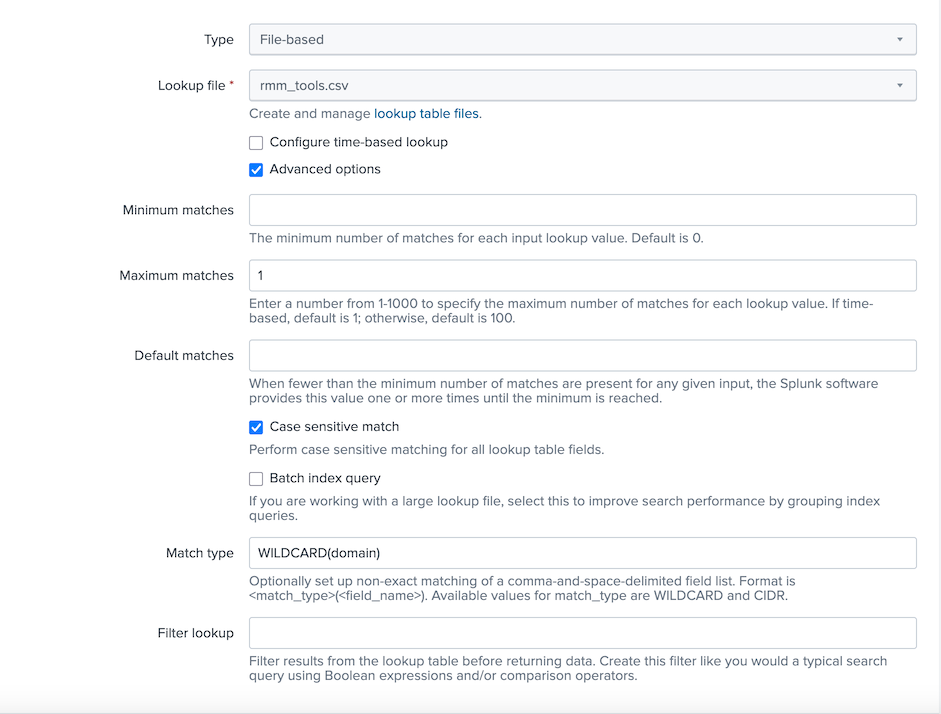
With this configuration, your output field won't be a multivalued field, and the wildcards in the domains will match.
Running our Searches
`cim_Network_Resolution_indexes`
| lookup rmm_tools domain AS query OUTPUT Name AS rmm_name
| search rmm_name=*
| table _time action src_ip rmm_name query_type query answer
| sort -_time
Again, your fields may not align with mine fully, I have mostly cim compliant fields so it should mostly align.

Another useful search is to group the source and other fields together by the rmm_name field so we can see a collection of multiple IPs that have done so.
`cim_Network_Resolution_indexes`
| bin span=1d _time AS date
| lookup rmm_tools domain AS query OUTPUT Name AS rmm_name
| search rmm_name=*
| stats values(date) AS dates values(src_ip) values(query) values(query_type) values(answer) by rmm_name
| rename values(*) AS *
| convert ctime(dates) timeformat="%m/%d/%Y"
This way we can see all the dates that these events happened, the source IPs, and I'm sure if you are an enterprise customer your logs will have user information which is something you'd want here as well. Now is the fun part where you get to reach out and find out why users are doing this! That, or if you have the data you check what processes are making this connection.
index=windows sourcetype="XmlWinEventLog" EventCode=22 query=remotedesktop.google.com
| table _time host user query answer ProcessId process_name Image
| sort -_time
Here we can see that the process that made the lookup was Firefox. In this case, this would indicate that Chrome Remote Desktop may not have been used yet, but the user may be looking into utilizing it. Best to find out more regardless.
Concluding Findings
As you run though your findings, assuming you have a large environment you're going to get a lot of hits if this isn't something you're currently tracking. Just be sure to track this activity, ideally you should tune out your known RMM tools to get rid of the additional noise and focus on what is not approved in your environment. This is a search that could potentially find not only threat actors but potential insider threats and shadow IT.
If you have any further questions, need help tayloring your search to your environment, or any other questions please leave a comment
and as always happy hunting!